05 Other Settings
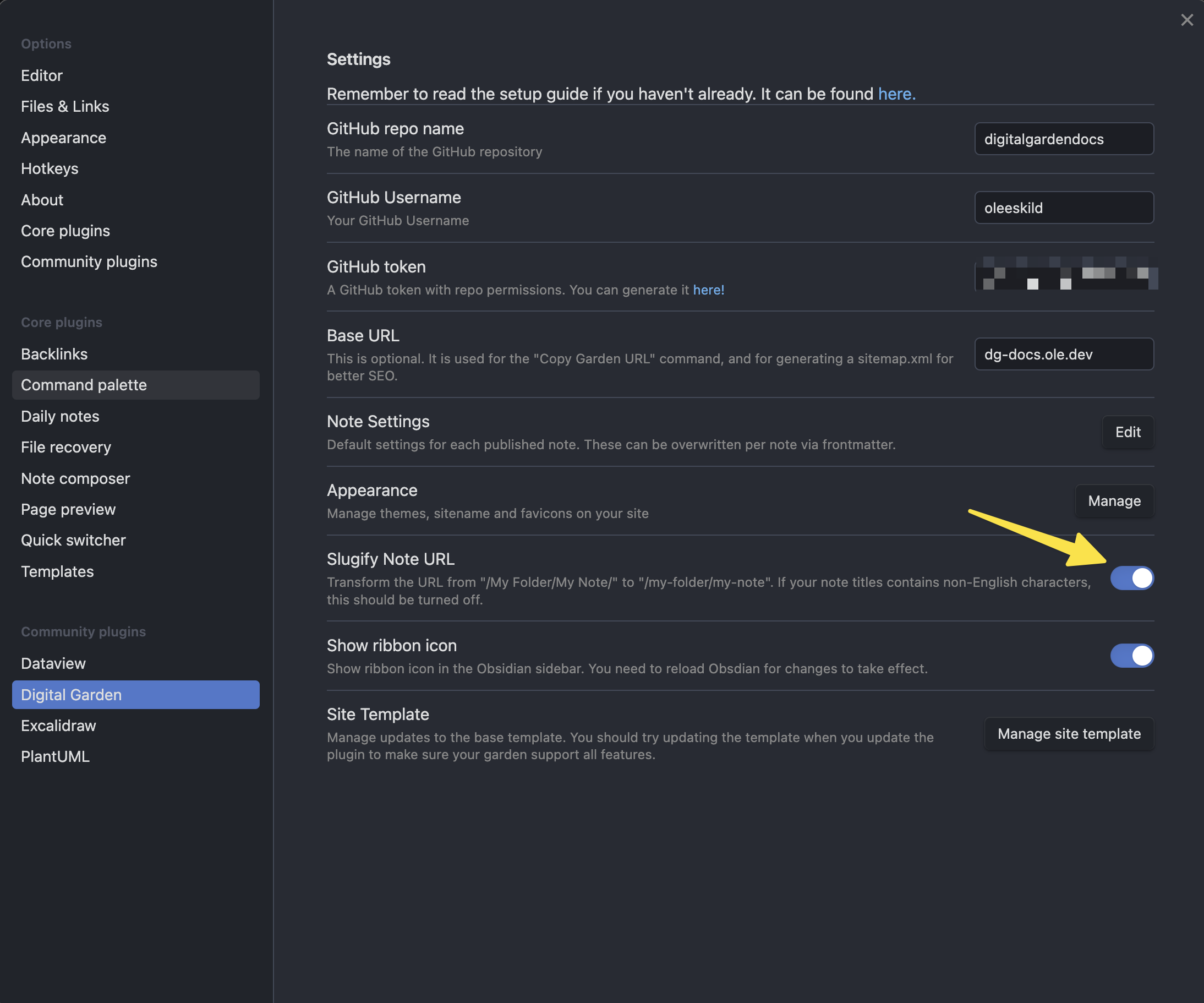
Slugify Note URL
The plugin "slugifies" your URLs by default. In essence this means that a note with the path "My Folder/My Note.md" will get the URL "my-folder/my-note".
You can disable this by turning this setting off.
Slugifying the URL causes some non-English characters, like Chinese characters, to disappear. Resulting in all notes getting an empty URL. If you've experienced this issue, disabling this setting should fix that.
Rewrite Paths
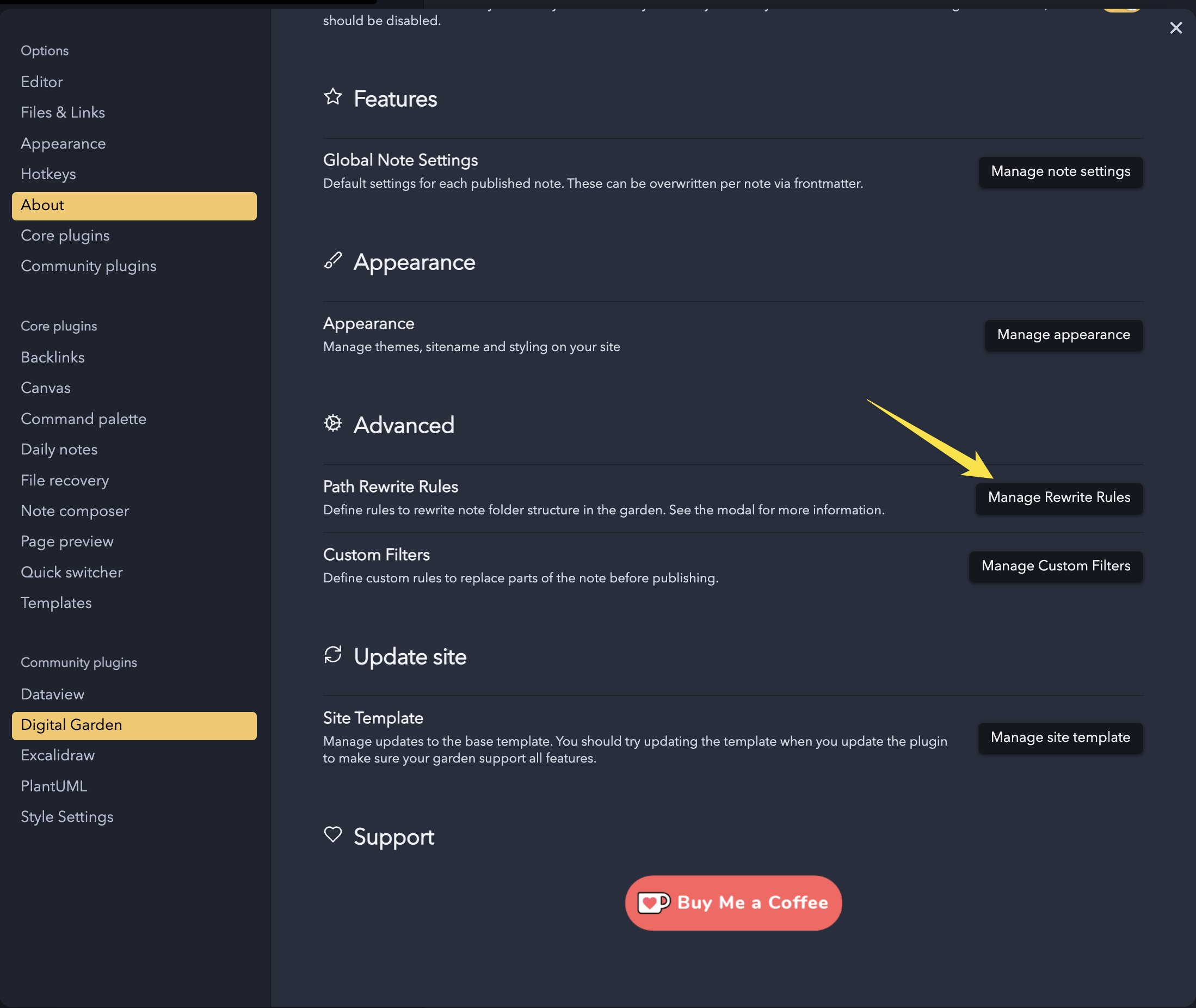
If you want your filepaths in the garden to differ from the vault path, you can add rewrite rules in the "Path Rewrite Rules" section. If, let's say, I want to change the Getting Started folder to instead be named "Quick Start" in the garden it would look like this:
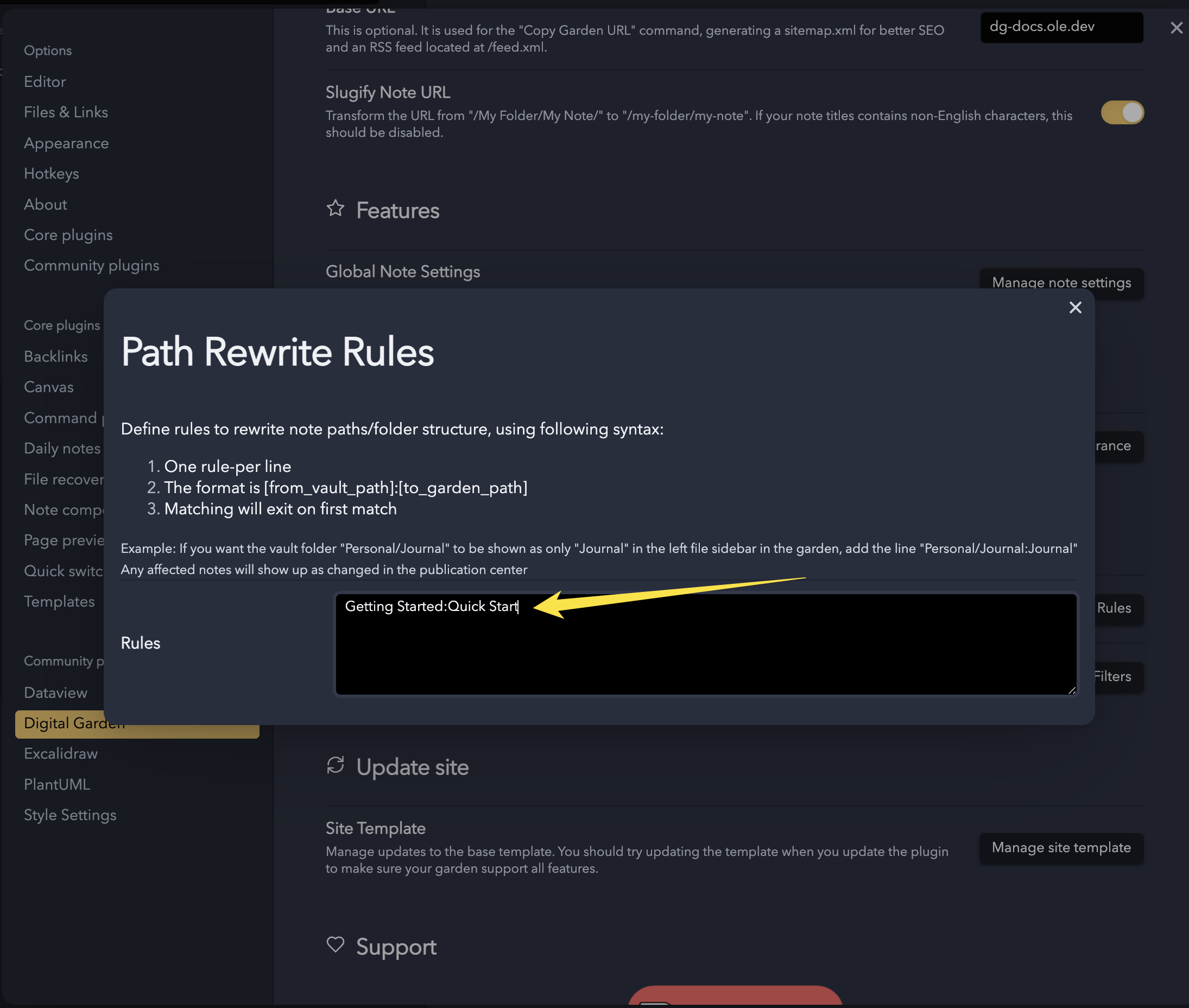
After adding this, all affected notes should show up as changed in the publication center, allowing you to update them.
If you want all your digital garden notes to be in a folder, say "published" in your vault, but appear under the root of your website you can use a rule on the form"published:". That is the folder path, and a colon not followed by anything. All notes under the folder "published" wil then appear on your website like "example.com/mynote"
Rewrite path for single note.
You can also change the note on a per note basis. Using dg-path in the frontmatter, you can change where a note should be located in the garden. This will overwrite any rules that may apply to that note.
The dg-path property needs the entire filepath you want. For example, if I wanted the "Features" note to instead be located under the "Advanced" folder in the garden I would add the following frontmatter to it:
---
dg-path: "Advanced/Features.md"
---
Custom filters
If you want any of your content to be modified before publishing the note, you can add a filter.
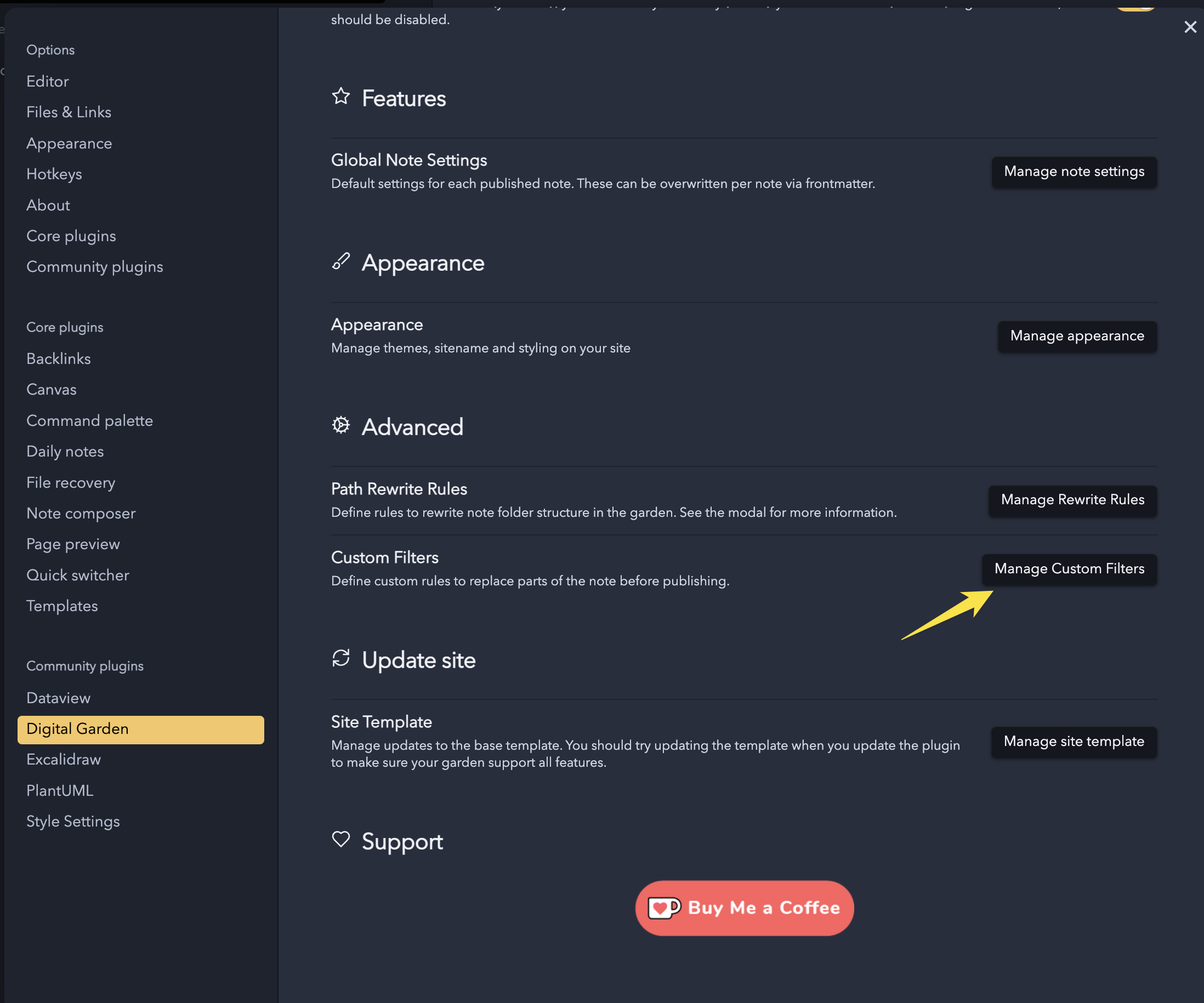
For example say you want to hide text that is inside a specific pattern:
This is some normal text.

::: hidden
This is some private text that should not be published.
:::
You could then add the following filter.
:::hidden(.*\n)*?:::
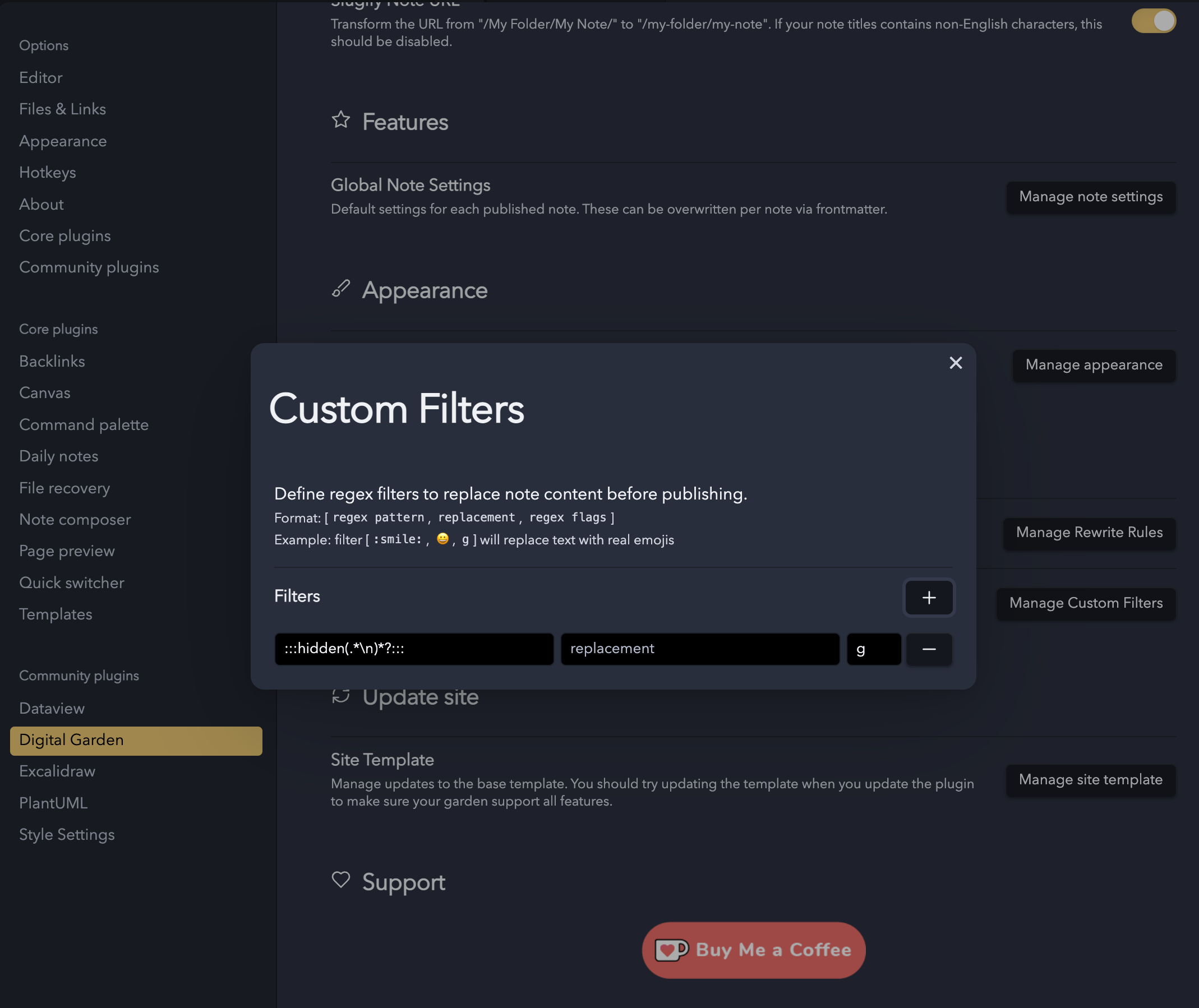
It also supports Regex groups, meaning you can use $1, $2 etc in the replacement string to insert the first and second regex group and so on.
Navigation Order
By default, the file tree on your site sorts items alphabetically with folders appearing before files. If you want to customize this order, you can use the "Reorder Navigation" feature.
[]()
You can access it in two ways:
- Open the command palette and search for "Digital Garden: Reorder navigation"
- Click the "Reorder Navigation" button in the plugin settings
This opens a modal where you can drag and drop files and folders to arrange them in your preferred order. The ordering is saved per folder level, so you can customize the order within each folder independently.
When you click "Save", the ordering is uploaded to your site and will take effect on the next build. If you publish new notes that aren't in the ordering, they will appear at the end in their default alphabetical position. If you delete a note that was in the ordering, it will simply be skipped.
To reset back to the default alphabetical ordering, click the "Reset to default" button in the modal.
You can also use dg-pinned on individual notes if you just want certain notes to appear at the top of their folder without customizing the entire order.