Adding custom components
For changing the markdown rendering or build pipeline see Configure build pipeline
Release 1.39.0 of the template introduced a new way to add custom components to your site. Previously, any customization done in the template would be overwritten whenever you updated the template, making it hard to maintain if you wanted the latest update.
The template now has the concept of slots, where you can add any content you want. Be it Javascript, HTML, or CSS.
How does it work?
The files should be placed using the following format:
src/site/_includes/components/user/<namespace>/<slot>/<filename>.njk
The components are written in Nunjuck, a templating language for HTML and Javascript. Don't worry if you don't know it. You don't have to use any of the features. Simply writing vanilla HTML will work. If you want to add a script, be sure to add it inside a script tag:
<script>
	console.log("hello")
</script>
The important thing is that the file extension used is "njk".
If you don't want to inline your scripts, but have them in a separate js file, you can put them in the src/site/scripts folder. They can then be referenced like this in your njk file:
<script src="/scripts/your-script.js" />
Examples
For example, to add common content in every page's header right after the title and tags, place the file in the following directory:
src/site/_includes/components/user/common/header/
Say you have a comment system implemented in a file (e.g. comment.njk) and you want it only on note pages. Put it in the following path:
src/site/_includes/components/user/notes/footer/comment.njk
The paths for a given slot are always sorted by filename. Therefore, if order matters, you should name files such that they maintain alphabetical order.
Available slots
Namespaces
Namespaces control which pages a component appears on.
| Namespace | Applies to |
|---|---|
common |
Home page and all note pages |
index |
Home page only |
notes |
Note pages only |
filetree |
Filetree component |
sidebar |
Sidebar component |
Slots
Slots control where on the page a component is placed.
Note and page slots
Available with the common, index, and notes namespaces.
| Slot | Placement | Example path |
|---|---|---|
head |
Inside the html <head> tag |
components/user/common/head/my-file.njk |
header |
Top of the page in the <header> tag, after tags and title |
components/user/notes/header/my-file.njk |
beforeContent |
Just before the page content | components/user/index/beforeContent/my-file.njk |
afterContent |
Just after the page content | components/user/common/afterContent/my-file.njk |
footer |
In the footer of the page | components/user/notes/footer/my-file.njk |
Filetree slots
| Slot | Placement | Example path |
|---|---|---|
beforeTitle |
Before the filetree title | components/user/filetree/beforeTitle/my-file.njk |
afterTitle |
After the filetree title | components/user/filetree/afterTitle/my-file.njk |
Sidebar slots
| Slot | Placement | Example path |
|---|---|---|
top |
Top of the sidebar | components/user/sidebar/top/my-file.njk |
bottom |
Bottom of the sidebar | components/user/sidebar/bottom/my-file.njk |
Custom user data
If you want to compute some data in any of your custom *.njk files, you can modify the src/helpers/userUtils.js file. If you have the latest version of the template, it should look like this:
// Put your computations here.

function userComputed(data) {
  return {};
}

exports.userComputed = userComputed;
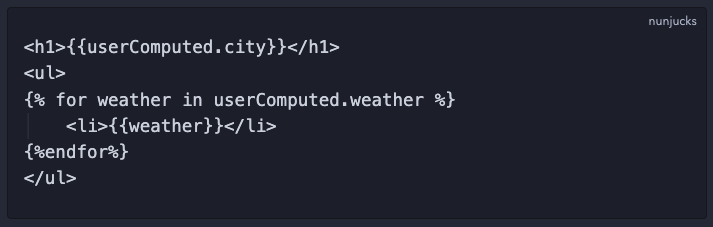
Any properties added to the object returned by the userComputed function will be available in your *.njk files. As an example, the following userUtils.js file:
// Put your computations here.

function userComputed(data) {
  return {
	  city: 'Bergen',
	  weather: ["rain", "rain", "rain"]
  };
}

exports.userComputed = userComputed;
...should make the city and weather properties available in your templates like so:
Dynamic CSS/SCSS
Examples in the wild
To get started and see a live example, take a look at GitHub user uroybd's garden, topobon. He uses components to add a theme switcher and a Disqus comment section among other things. You can take a look at how he's implemented it here.